

How to save important WhatsApp messages
Keep the useful part of a conversation close.
Chat Archive lets you save one message, several messages, or a complete day from a WhatsApp chat you imported.
Quick answer
Open the imported chat, start message selection, choose the messages, then tap Save Messages. You can create a new saved set or add the selection to an existing set from the same chat.
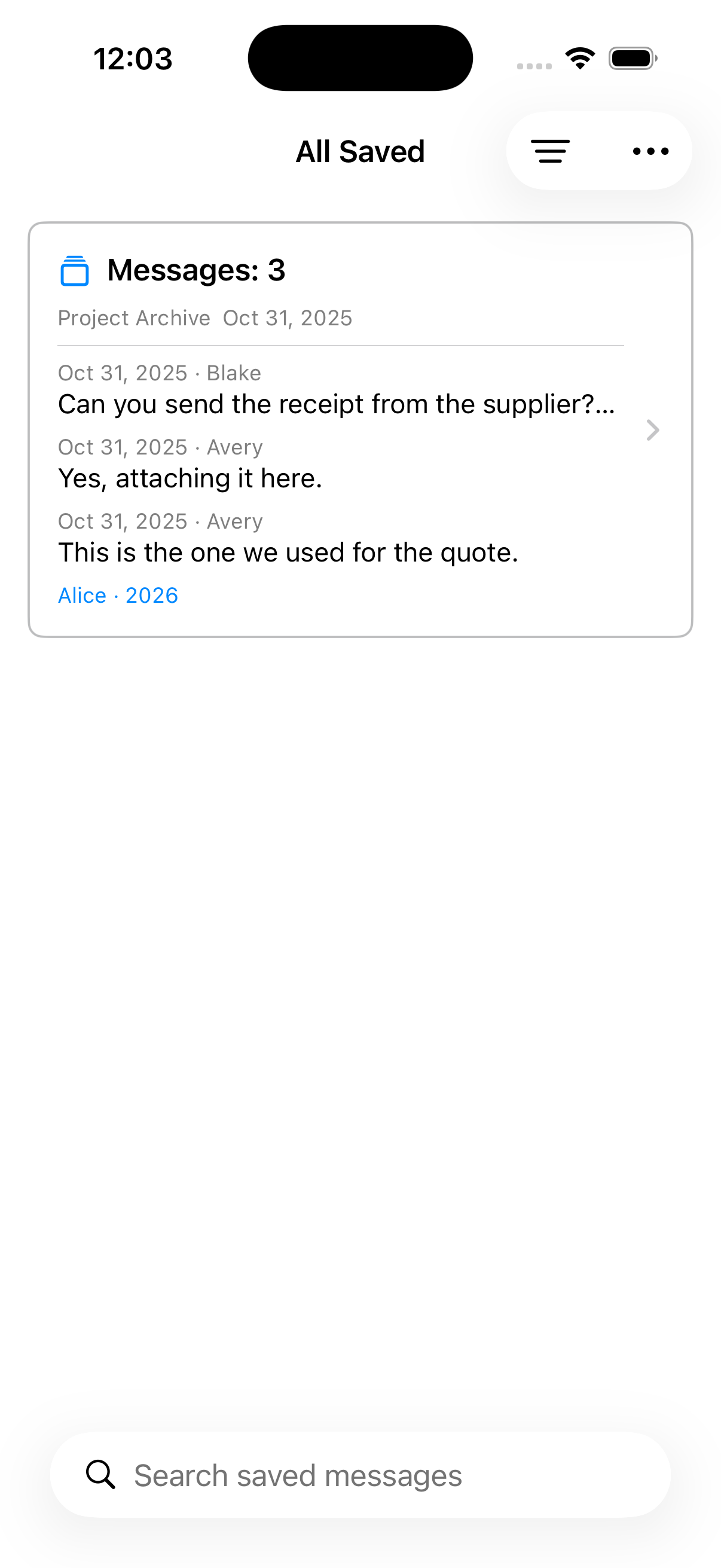
Save and organize the messages
Select the messages that matter from an imported WhatsApp chat, organize them with Labels, and find them again without scrolling through the whole conversation.
Select what matters
Use Select Messages or long-press a message, then choose one or more messages in order.
Name it if useful
A title is optional. Add reusable Labels such as Family, Paid, Follow up, or Recommendations.
Return through Saved
Search, filter, edit, or reopen the set as a chat-style timeline with included media and visible gaps.
Saved sets depend on the imported chat
A saved set is an organized reference to messages in one imported source chat, not an independent backup. Deleting that imported chat also removes its saved sets.
Read guides
Turn special WhatsApp conversations into a private memory album
Keep the conversation surrounding family milestones—messages, reactions, photos, and voice notes—and move from one saved moment to the next.
Organize invoices, payments, and follow-ups from WhatsApp chats
Collect practical messages from imported WhatsApp conversations, group them with Labels, and return to the original context when you need it.
How to export selected WhatsApp messages as PDF
Save a focused set of messages from an imported WhatsApp chat, review the visible gaps, and export that one saved set as a readable PDF.